

What a dead pixel test does
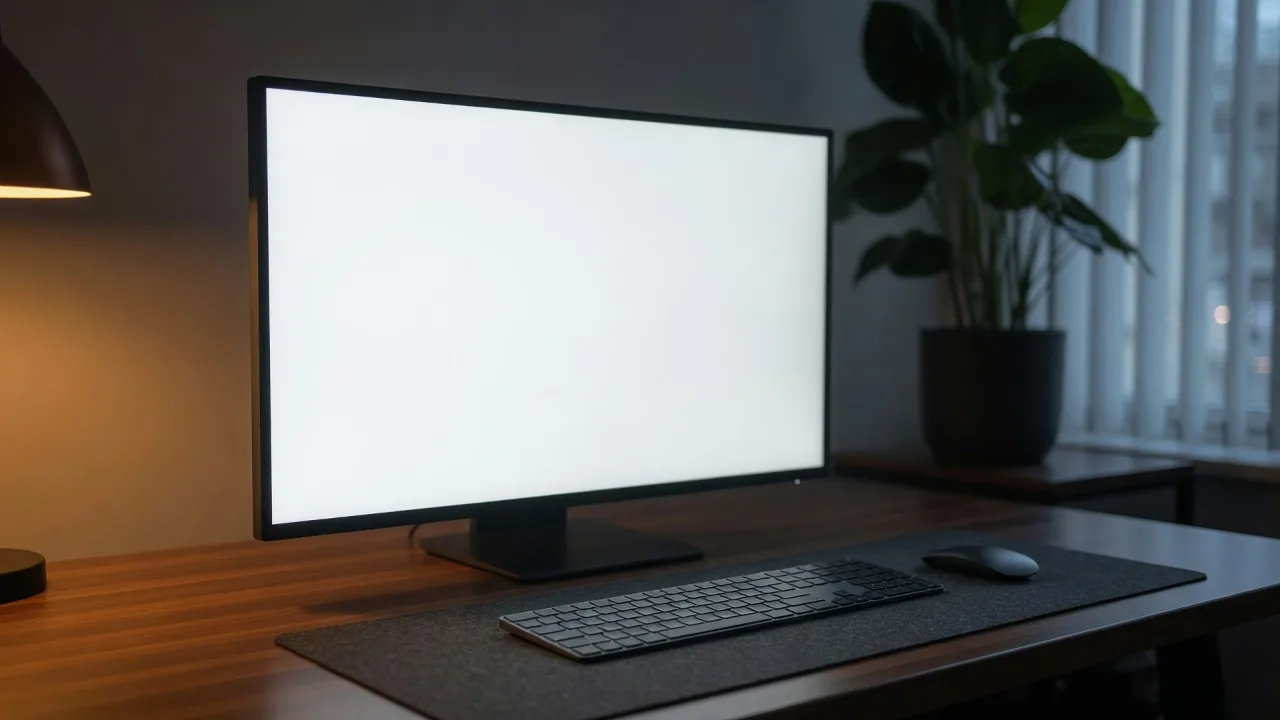
A dead pixel test fills your screen with solid colors so individual pixel defects are easier to see. Normal content hides small problems because images, text, shadows, and motion keep changing. A pure color screen removes that noise. On white, a fully dead pixel may appear as a small black dot. On black, a stuck bright pixel may appear as a white, red, green, blue, or colored dot. On red, green, and blue, weak or failed subpixels become easier to identify because each color isolates part of the pixel structure.
This dead pixel test is for practical inspection on monitors, laptops, tablets, phones, handhelds, and TVs. It does not require a download, account, or app. Open the test on the device you want to check, enter fullscreen, and move through each color slowly. The goal is to find pixels that do not behave like the rest of the screen: dots that stay dark, stay bright, stay colored, flicker, or disappear only on certain test colors.
Dead pixel vs stuck pixel vs dust
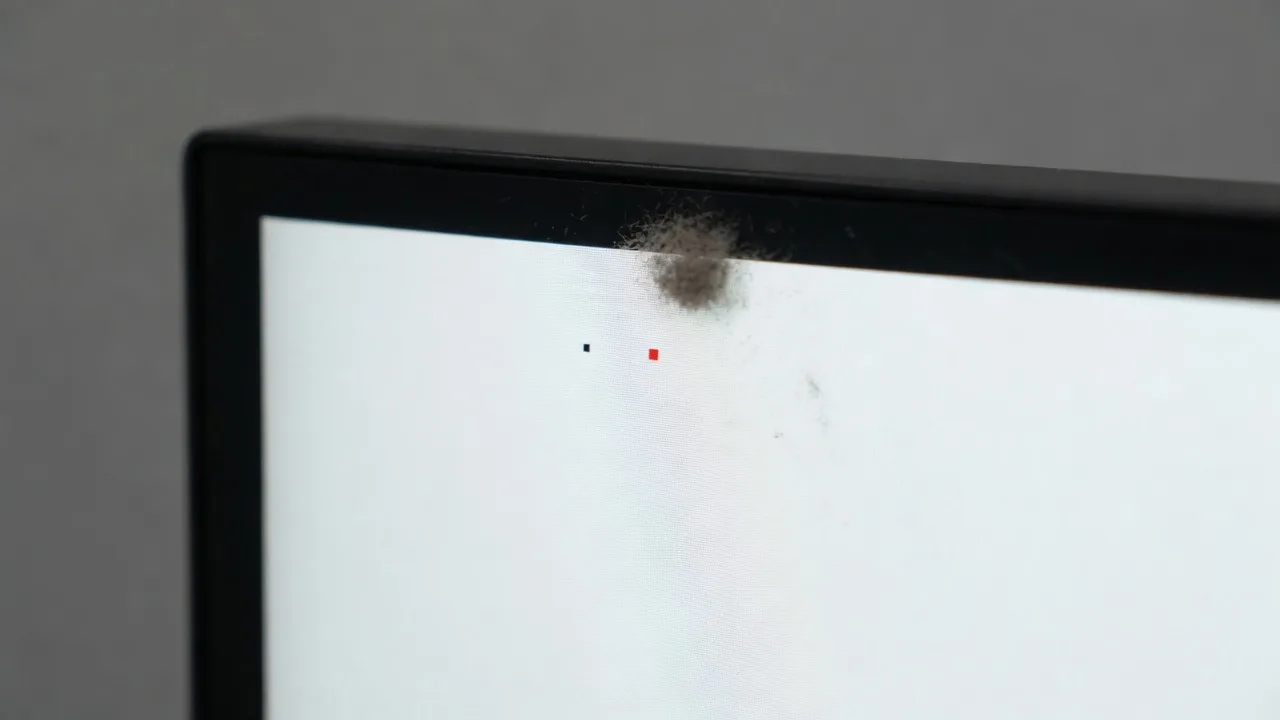
A dead pixel is usually unlit. It often looks black or very dark on a bright screen and does not change as expected. A stuck pixel is different. It is still lit, but locked on one value, so it may show as red, green, blue, white, or another constant color when the surrounding screen changes. A stuck pixel test is the same fullscreen color cycle, watched for a dot that keeps one hue. A weak subpixel can be more subtle: the point may look normal on some colors and wrong on others. For example, a missing green subpixel can make a point look magenta or dark when the screen is green.
Dust, dirt, scratches, and pressure marks can look like pixel defects. Before you assume a display is defective, clean the surface gently with a suitable microfiber cloth and inspect again. A dust speck often changes shape or brightness when you move your head or clean the screen. A real panel defect stays in the exact same location across colors. Do not press the mark with a fingernail or hard object. Pressing a panel can create new damage or make a temporary pressure mark look worse.
Best color sequence for checking pixels
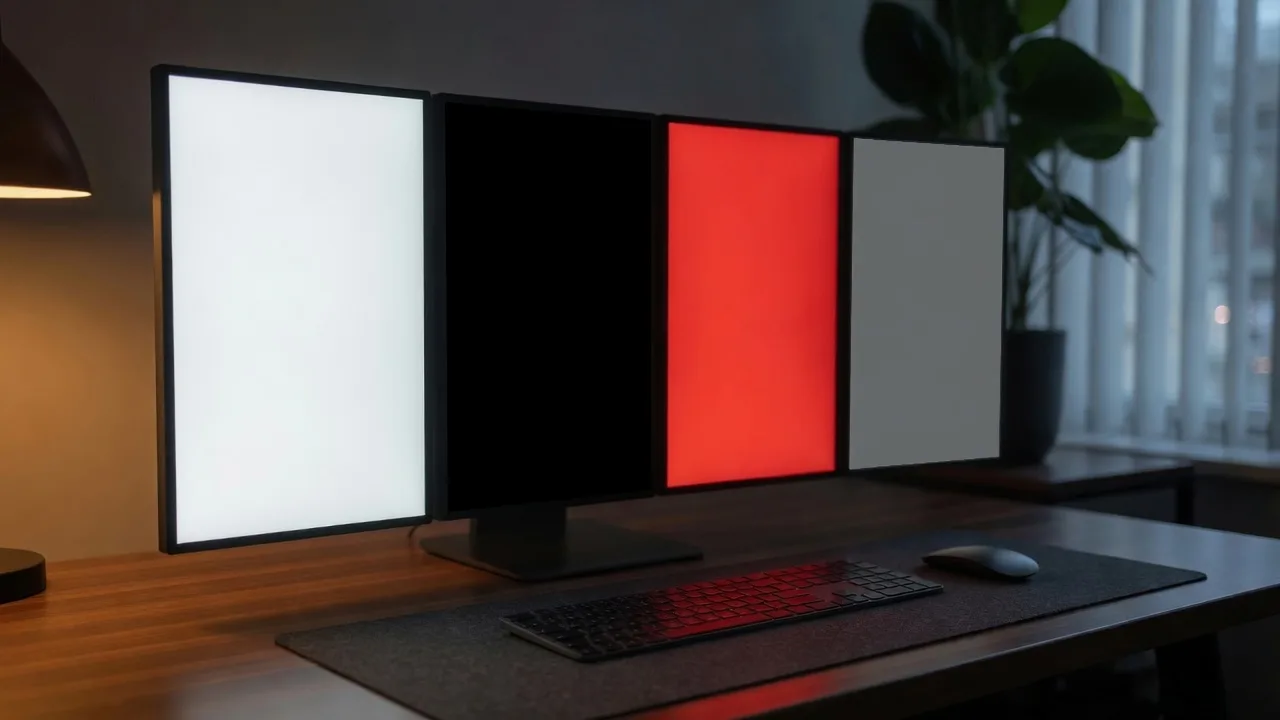
Start with white because it makes dark pixels, dust, and scratches stand out. Move to black next because stuck bright pixels are easiest to see when the rest of the screen is off or dark. Then test red, green, and blue. These primary colors help isolate subpixel behavior, because each normal pixel is built from red, green, and blue elements. If a suspicious point appears only on one primary color, it may be a subpixel issue rather than a fully unlit cell.
After the primary colors, use gray, cyan, magenta, and yellow to confirm what you found. Gray can reveal weak brightness differences, tint, and dirty screen effect. Cyan combines green and blue. Magenta combines red and blue. Yellow combines red and green. These secondary colors help when a defect is hard to classify, because they show how the pixel behaves when two subpixels should be active at the same time.
Dead pixel check on a phone, laptop, or monitor
A dead pixel check belongs on the panel you care about, not on a photo of that panel. For a phone or tablet, open this dead pixel test in the device browser, rotate to landscape if needed, and hide the toolbar so more of the color field is visible. For a laptop or external monitor, set native resolution, turn off Night Light or True Tone, and sit straight on. For a TV, use the TV browser or a laptop HDMI input and stand at normal viewing distance first.
iPhone, Android, laptop, and desktop monitors all use the same color sequence. The difference is glare, scaling, and notches. Zoomed pages and camera photos can hide a real defect or invent a false one. If you need a record for a return window, photograph the fullscreen color from a slight angle after cleaning, then compare the same spot in the live dead pixel test.
How to inspect a screen without missing defects
Inspect from your normal viewing distance first. A defect that is invisible from normal distance may not matter for real use. Then move closer and scan the display in a grid pattern. Look at the center, corners, edges, and any area where you already noticed a mark. Use the next and previous controls, or arrow keys, to move through colors while keeping your eyes on the same suspicious area. If a dot changes color incorrectly or remains visible across several patterns, note which colors reveal it.
For a new monitor or laptop, finish the dead pixel test before the return window closes. For a used device, test in the room where you will actually use it, because glare and reflections can hide or exaggerate small marks. For phones and tablets, rotate the device and repeat the check, especially if the display has a notch, curved edge, fold, or repaired glass. For televisions, stand at typical viewing distance first, then inspect closer only after you see something suspicious.

Can a dead pixel be fixed?
A physically dead pixel usually cannot be fixed by a website. Some stuck pixels may recover on their own or respond to manufacturer panel care features, but there is no guaranteed browser repair. Be careful with flashing “dead pixel test and fix” tools, pressure methods, or advice that asks you to rub the display. Those methods can create more damage than the original issue. If the device is new and the defect is visible in normal use, check the seller policy, manufacturer pixel policy, and warranty terms.
Use this dead pixel test as evidence, not as a repair promise. Record the colors where the defect appears, take a clear photo if needed, and compare the result with real content. A single pixel at the edge of a dense laptop screen may be acceptable to one person and unacceptable to another. Several clustered defects, a bright central pixel, or a defect visible during normal work is more serious.
Safety and OLED notes
Short solid-color tests are normal, but avoid leaving static colors on OLED screens for long unattended sessions at high brightness. Move through the colors, inspect the panel, then exit fullscreen. LCD and Mini LED displays are less sensitive to static retention, but high brightness still drains battery and can make your eyes tired. If your display has built-in panel refresh, pixel cleaning, or screen care features, follow the manufacturer instructions.
A dead pixel test is only one part of screen evaluation. After checking individual pixels, use white screen test and gray screen for brightness uniformity, black screen for glow and bleed, and OLED gray screen test for banding. The best screen test is the one that helps you decide whether a defect affects your actual viewing, work, gaming, or creative use.
Dead pixel test FAQ
How do I use this dead pixel test?
Open this dead pixel test, enter fullscreen, then cycle white, black, red, green, and blue. Inspect the same spot on each color for a pixel that stays dark, stays bright, or shows the wrong color.
What is the difference between a dead pixel and a stuck pixel?
A dead pixel usually stays black or unlit. A stuck pixel stays red, green, blue, white, or another fixed color when the rest of the screen changes. A stuck pixel test uses the same fullscreen colors as a dead pixel check.
Which colors should I test?
Start with white for dark dots and dust, then black for bright or stuck pixels. Use red, green, and blue next so a stuck pixel test can isolate one subpixel. Gray, cyan, magenta, and yellow confirm the same mark.
Can I do a dead pixel test online in a browser?
Yes. This dead pixel test online runs in the browser with no account. Fullscreen covers the panel; on some phones the browser chrome may remain, so rotate the device and hide the toolbar if you can.
Does a dead pixel check work on iPhone, Android, laptops, and monitors?
Yes. Run the dead pixel check on the screen you want to inspect: phone, tablet, laptop, monitor, or TV browser. Do not photograph another device; a camera can hide or fake dots.
Do I need to download a dead pixel test app?
No. This page is a browser dead pixel checker, not an app or 4K video download. If a result image is useful, photograph the fullscreen color from a slight angle after you clean the glass.
Can this dead pixel test and fix a pixel?
No. A dead pixel test can find and document a mark. It cannot repair hardware. Some stuck pixels fade after rest or a manufacturer pixel-refresh cycle; rubbing the panel can cause more damage.
How do I tell dust from a dead pixel?
Clean the glass, then look again. Dust often moves, changes shape, or disappears. A real dead pixel stays in the same panel location across every color in the dead pixel test.
Can a short dead pixel test damage an OLED screen?
A few minutes of fullscreen color is normal. Do not leave auto cycle running unattended at high brightness on OLED. Finish the dead pixel check, then exit fullscreen.
Is this the same as the dead pixel test guide?
No. This URL is the live dead pixel test. The guide is extra reading for setup and false alarms. Use this tool to inspect; open the guide only if you want a longer walkthrough.
