
Why OLED gray screens reveal problems
An OLED gray screen test is different from a normal gray background. OLED pixels create their own light, so the panel can produce extremely deep black without a backlight. That strength also makes near-black gray levels important. At 5% or 10% gray, tiny differences in pixel behavior can become visible as vertical bands, cloudy patches, grain, or uneven areas. Many OLED issues are difficult to see on bright colorful content, but a flat gray field removes the distraction and makes panel uniformity easier to judge.
Gray uniformity is also useful because real apps use gray constantly. Dark mode interfaces, game menus, video letterbox areas, streaming app backgrounds, browser sidebars, and editing software panels often use dark or mid-gray. A display can look excellent in vivid HDR content and still show uneven gray in quiet interface screens. This page gives you precise gray levels so you can test the conditions where OLED banding, dirty screen effect, image retention, and tint shifts are most likely to appear.
Which gray levels to test first
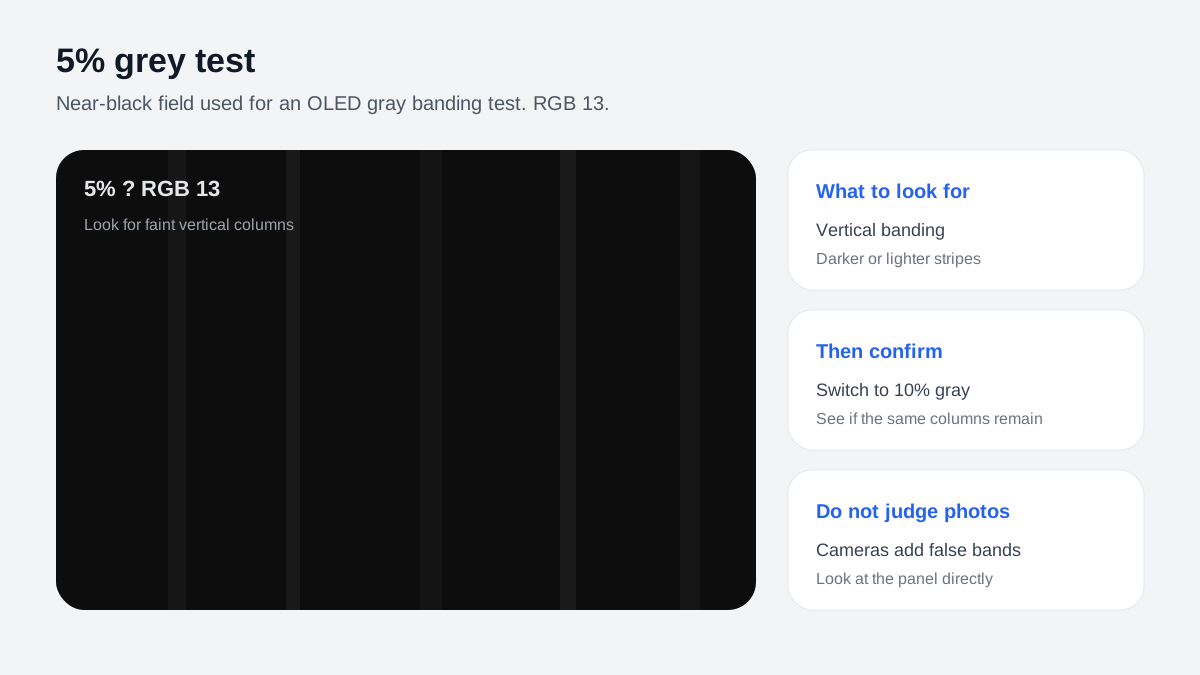
Start with 5% gray. This is a near-black pattern and one of the most revealing levels for OLED vertical banding. If you see faint stripes, darker columns, or uneven texture at 5%, move to 10% to see whether the issue remains visible. Some panels look rough at very low gray but clean up quickly as the level increases. Others show bands across a wider range. After near-black testing, move to 25% and 50% gray. These mid-gray levels are better for dirty screen effect, general brightness variation, cloudy patches, and color tint. Use 75% and 100% only after that, because bright levels can hide near-black problems but reveal lighter tint and retention traces.
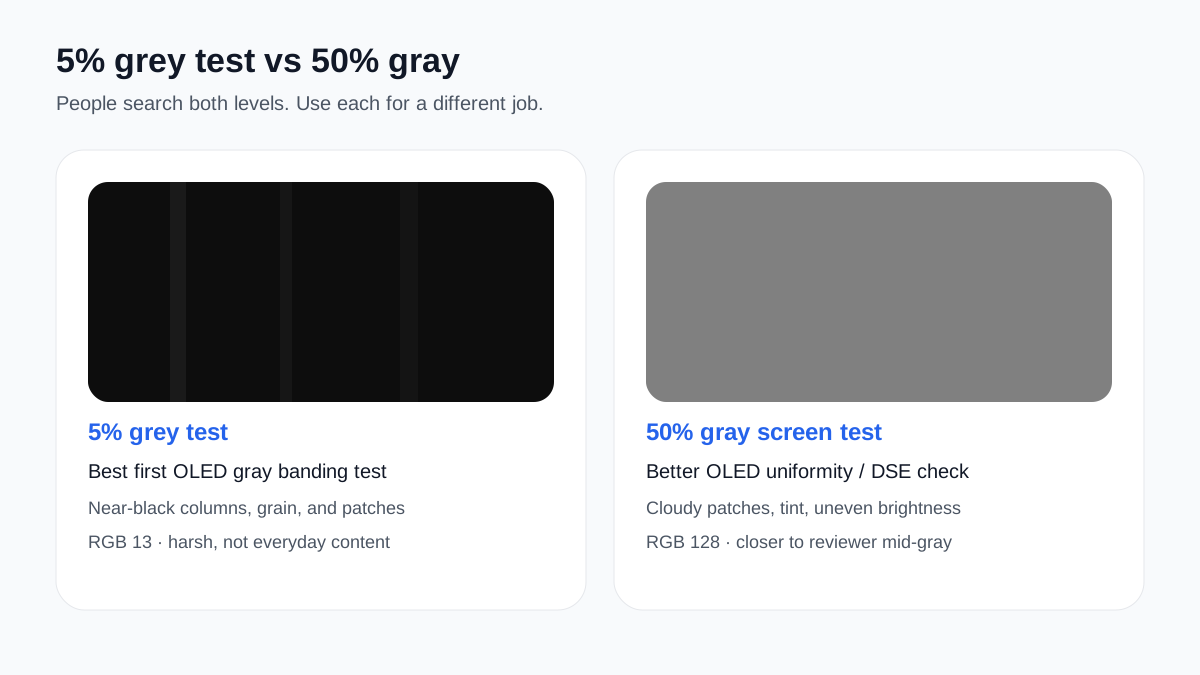
Do not judge the panel from one level alone. A 5% gray screen is intentionally harsh. It can expose behavior that rarely appears in real content. A 50% gray screen is closer to the uniformity checks used by many display reviewers, because it reveals how evenly a screen displays a common mid-tone. If the issue is visible only at one extreme test level and not in normal viewing, it may be acceptable. If it is visible in games, videos, browsing, or work apps, the test has identified something that affects real use.
OLED banding, dirty screen effect, and tint
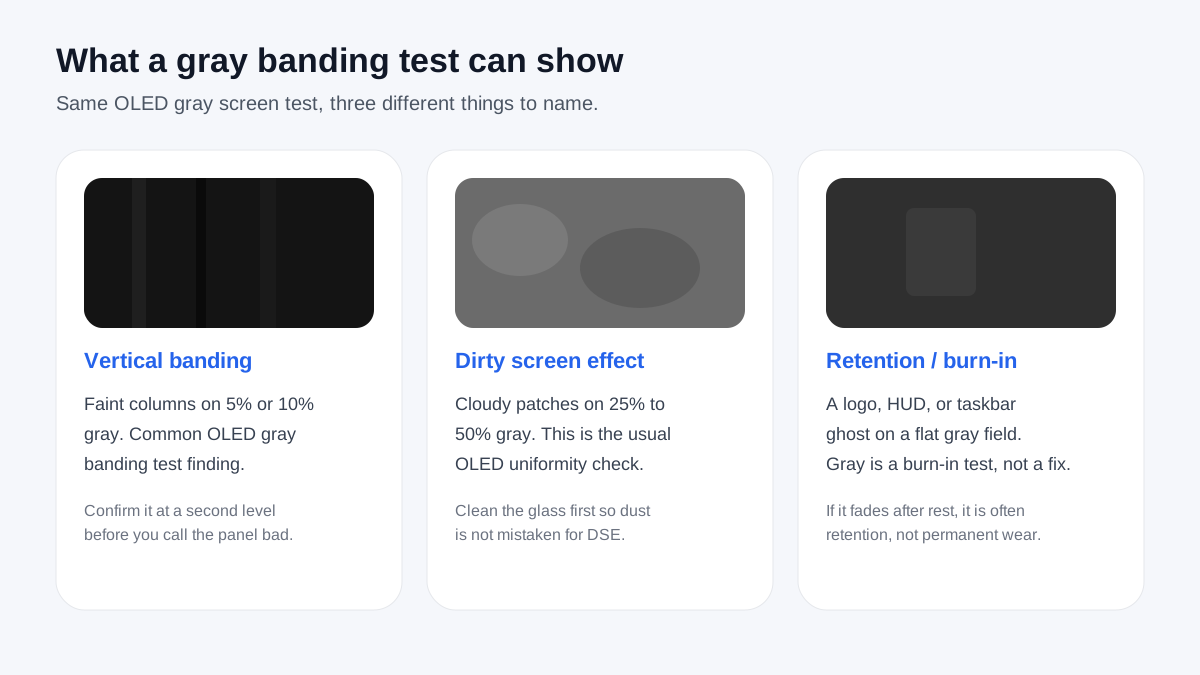
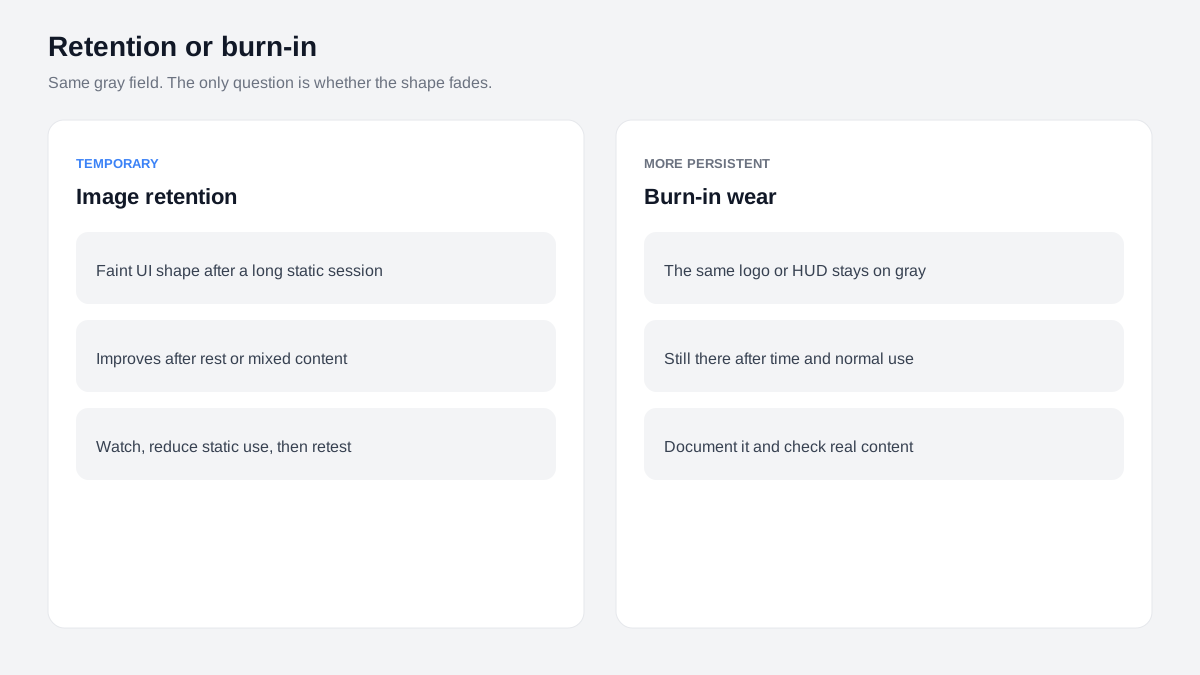
Vertical banding usually looks like faint vertical stripes or columns, often easiest to see on very dark gray. Dirty screen effect can look like blotches, cloudy patches, or a screen that seems slightly dirty even when the glass is clean. Tint shifts can look pink, green, or blue across part of the screen. Image retention or burn-in may appear as a faint shadow of a static interface, logo, taskbar, news ticker, game HUD, or browser element. Gray levels are useful because they reveal all of these issues without the noise of detailed content.
OLED panels can improve or change slightly after early use and after their built-in compensation cycles run. Many TVs and monitors include pixel refresh or panel care features. Those tools are controlled by the display manufacturer and should be used according to the device instructions. This page does not repair banding or burn-in. It is a diagnostic screen that helps you see whether a suspected issue is present, how strong it is, and which gray levels reveal it most clearly.
How to inspect without overreacting
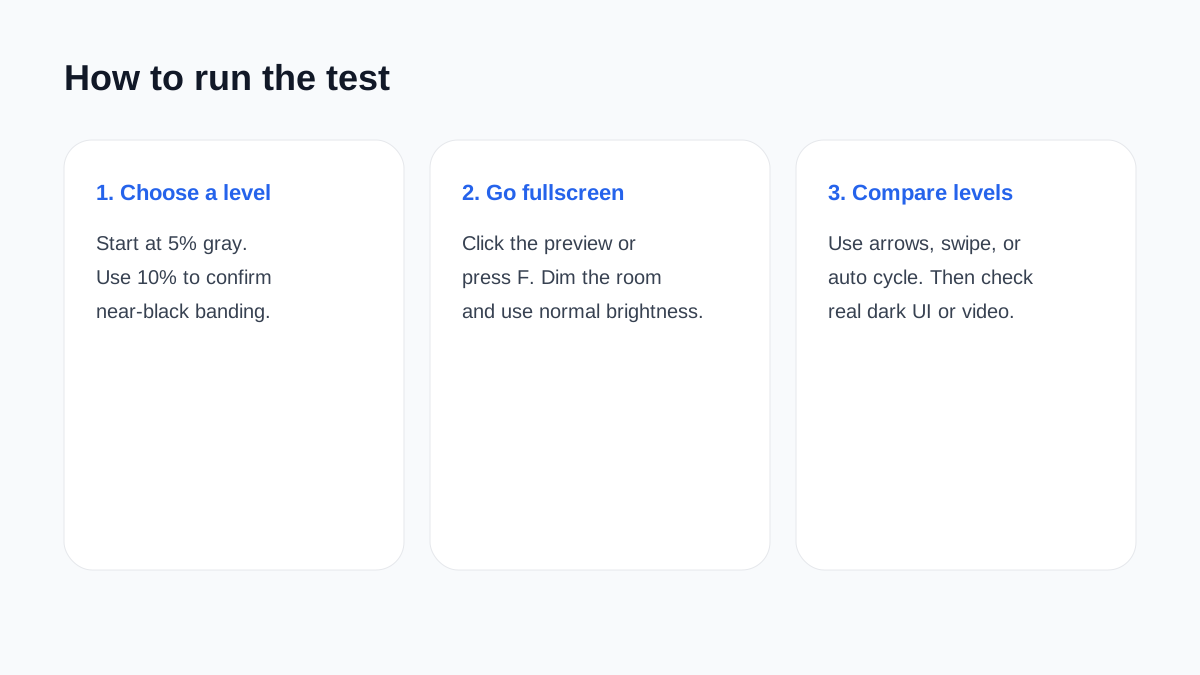
Test patterns are useful, but they can also make people notice panel traits they would never see in real content. Use a reasonable process. First, lower room reflections and set the display to the picture mode you actually use. Open 5%, 10%, 25%, 50%, and 75% gray in fullscreen mode. Look from your normal viewing distance before inspecting close up. If you see a band or patch, confirm it at another gray level. Then check real content that matches your use: dark app interfaces, slow camera pans, sports, games, or video scenes with flat backgrounds.
If the issue is obvious in normal viewing, document it with the gray levels where it appears. If the display is new, compare your findings with the return or warranty policy before the exchange window closes. If the issue is visible only in a harsh near-black test and never in real content, it may be normal panel variation. Online photos can be misleading because camera exposure, moire, compression, and viewing angle often exaggerate or hide gray uniformity problems.
OLED safety and test duration
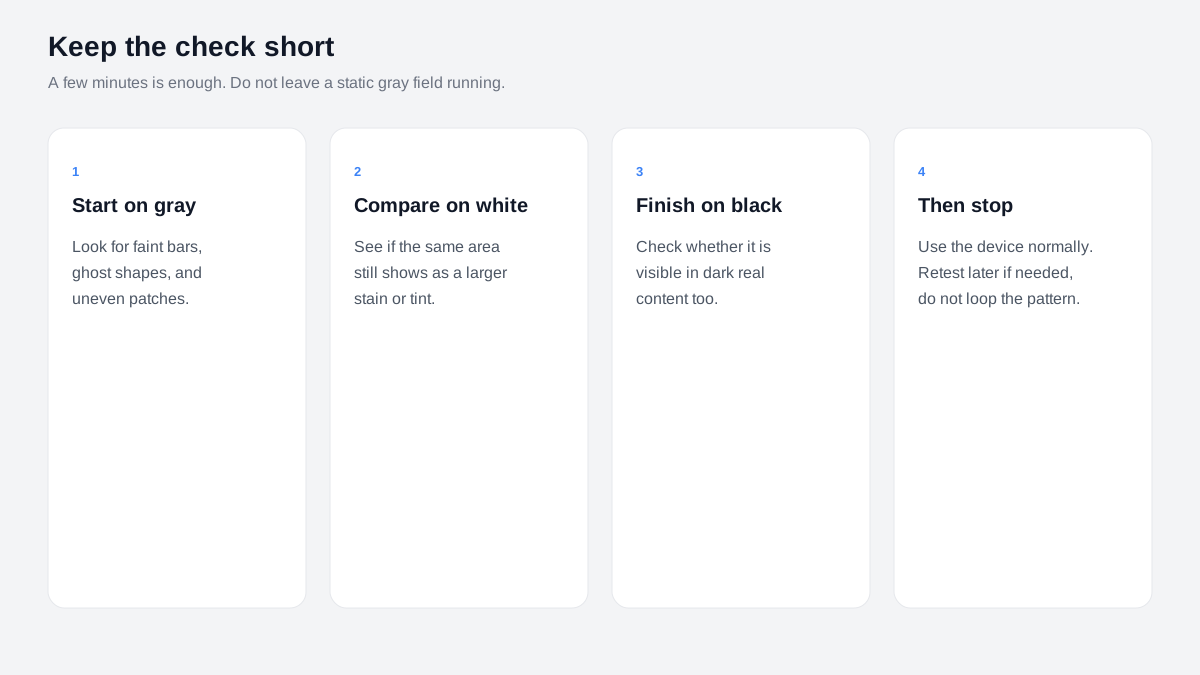
Keep OLED gray testing short. A few minutes of fullscreen gray levels is normal for inspection, but static test screens should not be left on high brightness for long unattended sessions. Avoid pausing on the same level for an hour, especially at high OLED light settings. Use the minimum brightness that lets you see the problem, and exit fullscreen when you are finished. If your device has panel care settings, keep them enabled unless the manufacturer recommends otherwise.
This OLED gray screen test is meant to be practical: choose a gray level, inspect the screen, compare with real content, and move on. It gives you a better answer than a random gray image because the level is controlled and repeatable. Use it together with white, black, red, green, and blue screens when you need a complete display check.
OLED gray screen test FAQ
What is a 5% grey test?
A 5% grey test is a near-black OLED gray screen, about RGB 13. Use it first for a gray banding test: look for faint vertical columns, grain, or patches. Then open 10% to see whether the same marks stay visible.
What is grey banding on an OLED?
Grey banding is faint vertical or horizontal stripes on a flat gray field. It is easiest to see at 5% or 10% gray. If the stripes appear only on this test and never in dark apps or video, they may not matter in real use.
How do I run an OLED uniformity test?
Start this OLED gray screen test at 5% and 10% for near-black banding, then use 25% and 50% gray for dirty screen effect and tint. Go fullscreen, inspect from your normal seat, and compare more than one level before you judge the panel.
Should I use a 5% or 50% gray screen test?
Use both. A 5% grey test shows near-black banding. A 50% gray screen test is the better OLED uniformity and DSE check. Searching “gray screen test 5” or “gray screen test 50” is the same tool with a different starting level.
Can I do a grey screen test online on my phone?
Yes. This grey screen test online runs in the phone browser. Rotate the phone if needed, tap the preview for a full-window view, then swipe to change levels. It also works as a grey screen test for iPhone, Android, and a TV browser.
Can I use this gray screen as an OLED burn-in test?
Yes. A flat gray field is the usual OLED burn-in test image: look for a leftover logo, HUD, or taskbar. If the ghost fades after rest or mixed content, it is often temporary retention. This page shows the mark; it does not repair it.
Does this work on an LG OLED or tandem OLED?
Yes. Use the same gray banding test on LG OLED, QD-OLED, and tandem OLED. Tandem panels can still show near-black columns. Start at 5%, then confirm at 10% and 50%. The test does not apply an LG banding fix.
Can an OLED gray screen test fix banding?
No. An OLED gray screen test only helps you see banding, DSE, or retention. Pixel refresh and panel care stay in the TV or monitor menus. Warranty or return decisions stay with the seller.
Is this the same as a regular gray screen test?
A regular gray screen is one shade for lighting or a quick look. This page is the OLED version of a grey screen test: precise levels, fullscreen, and step-through controls. For one flat gray, use the gray screen page.
Can this test tell if my screen is OLED?
No. A gray field does not prove OLED versus LCD. It only shows uniformity on whatever panel you already have. If you need to know the panel type, check the device specifications.
Why is my screen turning grey?
This page is a grey test pattern, not a repair guide for a phone or laptop that has turned grey on its own. If the whole display washed out after a drop, update, or backlight failure, that is a hardware issue. Use this tool only when you want a controlled gray field.
Can a short OLED gray test damage my screen?
A few minutes of fullscreen gray is normal. Do not leave a static OLED gray screen test on high brightness for a long unattended session. Use the lowest brightness that still shows the issue, then exit.
